> ## Documentation Index
> Fetch the complete documentation index at: https://docs.buildassistants.app/llms.txt
> Use this file to discover all available pages before exploring further.
# Setting Up Multi Calendar Booking With Custom Tools
 ## Background and Purpose
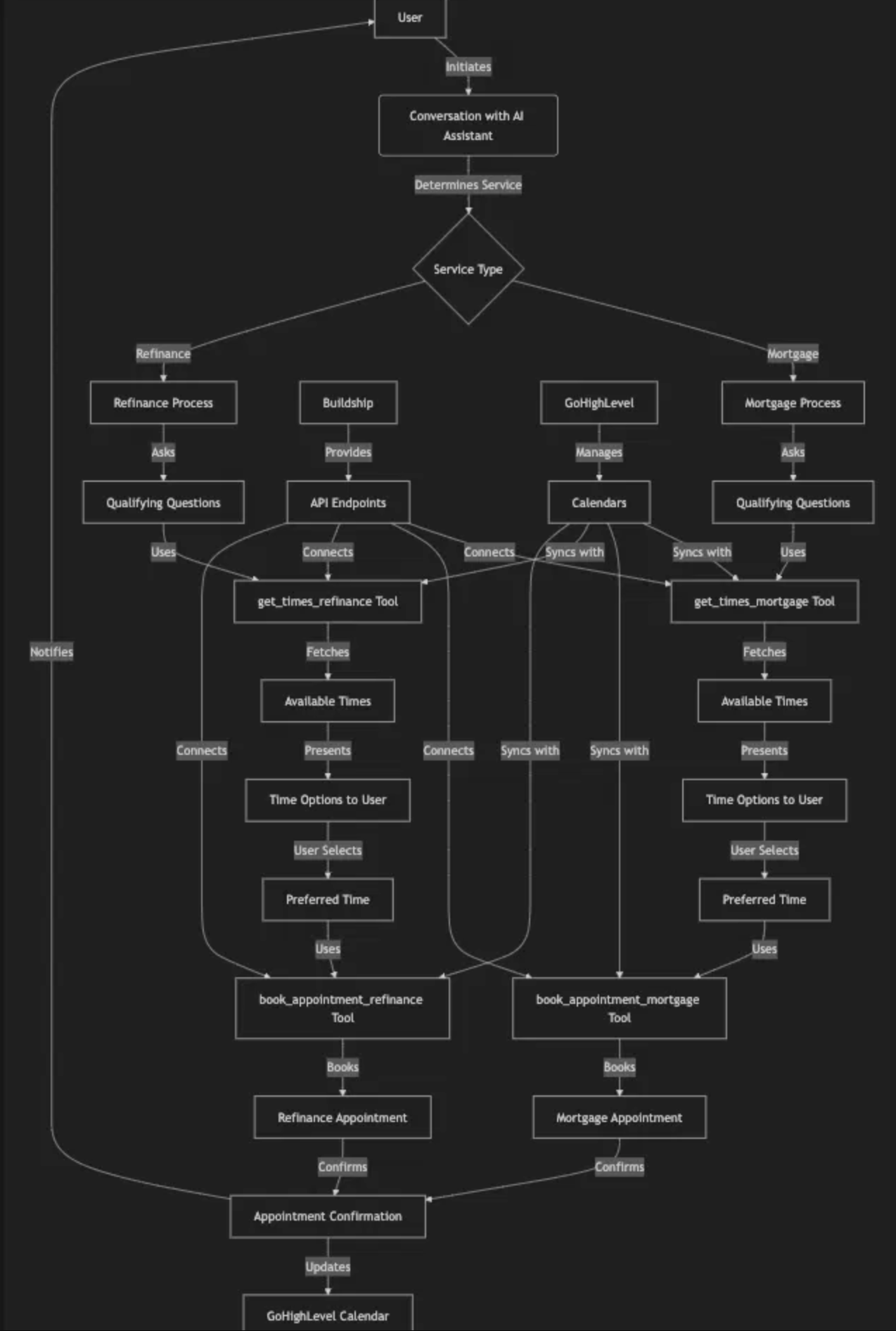
This SOP provides a step-by-step guide to implementing multi-calendar booking using custom tools, Buildship, and your AI assistant. It enables your AI assistant to manage appointments across multiple calendars by retrieving available time slots and scheduling appointments seamlessly.
## Background and Purpose
This SOP provides a step-by-step guide to implementing multi-calendar booking using custom tools, Buildship, and your AI assistant. It enables your AI assistant to manage appointments across multiple calendars by retrieving available time slots and scheduling appointments seamlessly.
 ## Overview
To implement multi-calendar booking, you'll:
1. **Create two custom tools for each calendar:**
* One for fetching available times
* One for booking appointments
2. **Use Buildship to create API endpoints** for these tools
3. **Integrate the tools into your AI assistant** by configuring their prompts and descriptions
4. **Test and refine the system** to ensure smooth functionality
## Prerequisites
* **GoHighLevel Account:** Ensure you have multiple calendars set up (e.g., mortgage and refinance)
* **Buildship Account:** To create and host API endpoints
* **AI Assistant Platform:** To add custom tools and configure prompts (e.g., buildassistants.app)
## Step 1: Set Up Calendars in GoHighLevel
Create separate calendars for each service. Examples:
* **Mortgage Calendar:** For mortgage-related appointments
* **Refinance Calendar:** For refinance-related appointments
### Calendar Configuration
1. Navigate to **Calendar Settings** in GoHighLevel
2. Create distinct calendars for each service type
3. Configure availability hours and booking rules
4. Note each calendar's unique ID for API integration
## Step 2: Build Custom Tools Using Buildship
Create **two tools for each calendar:**
* Get Available Times Tool
* Book Appointment Tool
### A. Create the "Get Available Times" Tool
## Overview
To implement multi-calendar booking, you'll:
1. **Create two custom tools for each calendar:**
* One for fetching available times
* One for booking appointments
2. **Use Buildship to create API endpoints** for these tools
3. **Integrate the tools into your AI assistant** by configuring their prompts and descriptions
4. **Test and refine the system** to ensure smooth functionality
## Prerequisites
* **GoHighLevel Account:** Ensure you have multiple calendars set up (e.g., mortgage and refinance)
* **Buildship Account:** To create and host API endpoints
* **AI Assistant Platform:** To add custom tools and configure prompts (e.g., buildassistants.app)
## Step 1: Set Up Calendars in GoHighLevel
Create separate calendars for each service. Examples:
* **Mortgage Calendar:** For mortgage-related appointments
* **Refinance Calendar:** For refinance-related appointments
### Calendar Configuration
1. Navigate to **Calendar Settings** in GoHighLevel
2. Create distinct calendars for each service type
3. Configure availability hours and booking rules
4. Note each calendar's unique ID for API integration
## Step 2: Build Custom Tools Using Buildship
Create **two tools for each calendar:**
* Get Available Times Tool
* Book Appointment Tool
### A. Create the "Get Available Times" Tool
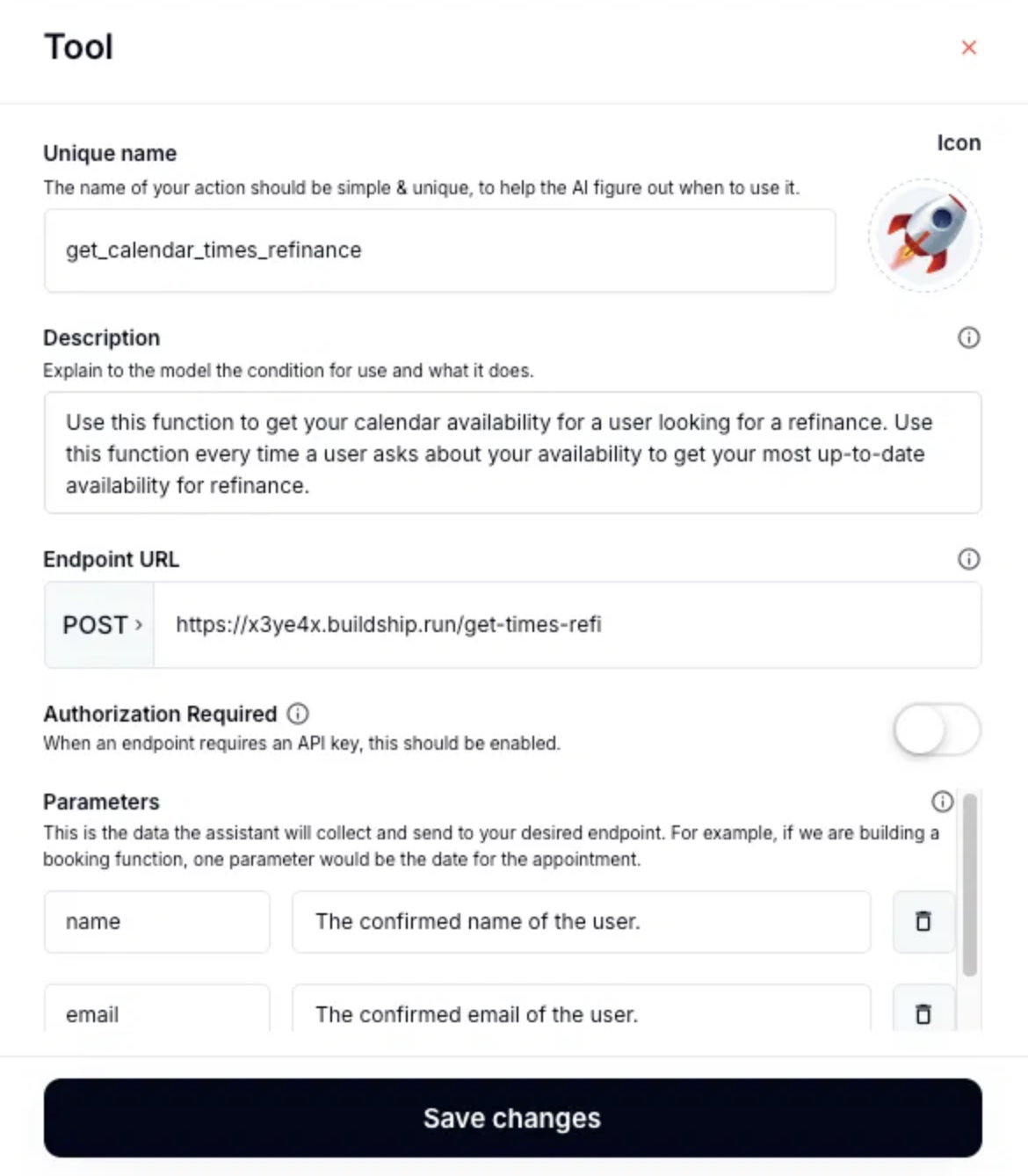 #### In Buildship:
1. **Create a new workflow**
2. **Name:** `get_times_` (e.g., `get_times_mortgage`)
#### Functionality:
* Make a **GET request** to the GoHighLevel API to retrieve available time slots
* **Endpoint URL:** Use the GoHighLevel endpoint for free time slots
#### Configuration:
**Query Parameters:**
* `calendarId`: The calendar's unique ID
* `startTime`: Start date/time for the query
* `endTime`: End date/time for the query
**Headers:**
* `Authorization`: Include your API key or token
* `Content-Type`: application/json
#### Save and Deploy:
* Buildship provides an endpoint URL for this workflow
* Test the endpoint to ensure it returns available time slots
### B. Create the "Book Appointment" Tool
#### In Buildship:
1. **Create a new workflow**
2. **Name:** `get_times_` (e.g., `get_times_mortgage`)
#### Functionality:
* Make a **GET request** to the GoHighLevel API to retrieve available time slots
* **Endpoint URL:** Use the GoHighLevel endpoint for free time slots
#### Configuration:
**Query Parameters:**
* `calendarId`: The calendar's unique ID
* `startTime`: Start date/time for the query
* `endTime`: End date/time for the query
**Headers:**
* `Authorization`: Include your API key or token
* `Content-Type`: application/json
#### Save and Deploy:
* Buildship provides an endpoint URL for this workflow
* Test the endpoint to ensure it returns available time slots
### B. Create the "Book Appointment" Tool
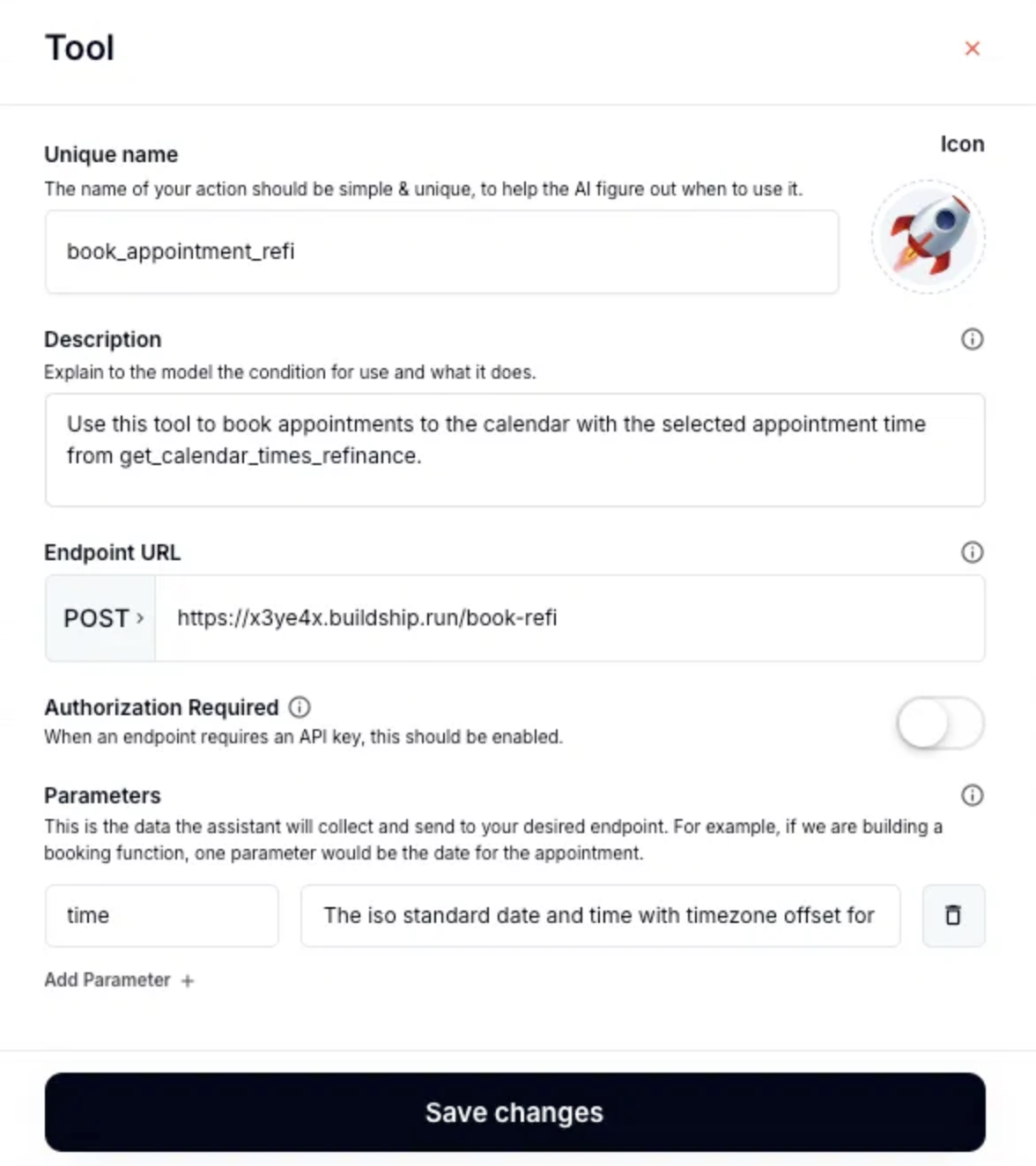 #### In Buildship:
1. **Create a new workflow**
2. **Name:** `book_appointment_` (e.g., `book_appointment_mortgage`)
#### Functionality:
* Make a **POST request** to the GoHighLevel API to book appointments
* **Endpoint URL:** The GoHighLevel booking endpoint
#### Configuration:
**Request Body:**
```json theme={null}
{
"calendarId": "calendar_unique_id",
"contactId": "client_unique_id",
"locationId": "ghl_location_id",
"startTime": "2025-06-18T14:00:00.000Z"
}
```
**Headers:**
* `Authorization`: API key or token
* `Content-Type`: application/json
#### Save and Deploy:
* Buildship provides an endpoint URL for this workflow
* Test the endpoint to ensure appointments are created successfully
## Step 3: Configure Tools in the AI Assistant
### A. Add the "Get Available Times" Tool
#### In Your AI Platform (buildassistants.app):
1. **Create a custom tool**
2. **Name:** Match Buildship (e.g., `get_times_mortgage`)
#### Configure the Tool:
* **Description:** "Fetch available times for the mortgage calendar."
* **Endpoint URL:** Paste the Buildship URL
* **Parameters:**
* `name`: User's name
* `email`: User's email
* `start_date`: Preferred date range start
* `end_date`: Preferred date range end
### B. Add the "Book Appointment" Tool
#### In Your AI Platform (buildassistants.app):
1. **Create a custom tool**
2. **Name:** Match Buildship (e.g., `book_appointment_mortgage`)
#### Configure the Tool:
* **Description:** "Book an appointment on the mortgage calendar."
* **Endpoint URL:** Paste the Buildship URL
* **Parameters:**
* `time`: Selected appointment time in ISO 8601 format
* `client_name`: Client's full name
* `client_email`: Client's email address
* `client_phone`: Client's phone number
### C. Link the Tools Together
Reference the "Get Available Times" tool in the "Book Appointment" tool's description.
**Example:** "Use this tool to book an appointment with the selected time retrieved from the get\_times\_mortgage tool."
## Step 4: Update AI Prompts or Task Framework
Define the workflow for the AI:
1. **Determine the service type** (mortgage or refinance)
2. **Use the appropriate tools** to fetch times and book appointments
### Example Workflow:
#### Mortgage Service:
1. Ask qualifying questions about mortgage needs
2. Use `get_times_mortgage` to fetch available times
3. Present time options to the user
4. Book appointment via `book_appointment_mortgage`
#### Refinance Service:
1. Ask qualifying questions about refinance needs
2. Use `get_times_refinance` to fetch available times
3. Present time options to the user
4. Book appointment via `book_appointment_refinance`
### AI Prompt Example:
```
When a user requests a mortgage consultation:
1. Ask qualifying questions about their mortgage needs
2. Use the get_times_mortgage tool to fetch available appointment times
3. Present 3-5 time options to the user
4. Once they select a time, use book_appointment_mortgage to schedule the appointment
5. Confirm the appointment details with the user
```
## Step 5: Test the Setup
### Simulate User Interactions:
1. **Test mortgage booking flow:**
* Initiate conversation requesting mortgage consultation
* Verify AI fetches available times correctly
* Confirm appointment booking works properly
2. **Test refinance booking flow:**
* Initiate conversation requesting refinance consultation
* Verify correct calendar is accessed
* Confirm appointment appears in correct calendar
### Verify Results in GoHighLevel:
* **Check appointment creation:** Confirm appointments appear in the correct calendars
* **Validate user details:** Ensure contact information is accurately captured
* **Review timing:** Verify appointments are scheduled at requested times
## Step 6: Refine the System
### Debug Issues:
* **Verify API calls** and parameters in Buildship workflows
* **Check authentication** and API key permissions
* **Review error handling** for failed requests
### Optimize Responses:
* **Make AI outputs clear and concise**
* **Improve appointment confirmation messaging**
* **Enhance time slot presentation**
### Prepare for Edge Cases:
* **Handle no availability** scenarios gracefully
* **Implement rescheduling** functionality
* **Add cancellation** capabilities
* **Manage timezone** differences
## Example Configurations
### Get Available Times Tool (Mortgage):
* **Name:** `get_times_mortgage`
* **Description:** "Fetch available times for the mortgage calendar."
* **Endpoint URL:** \[Buildship Endpoint]
* **Parameters:** `name`, `email`, `start_date`, `end_date`
### Book Appointment Tool (Mortgage):
* **Name:** `book_appointment_mortgage`
* **Description:** "Book an appointment using the selected time from get\_times\_mortgage."
* **Endpoint URL:** \[Buildship Endpoint]
* **Parameters:** `time`, `client_name`, `client_email`, `client_phone`
### Get Available Times Tool (Refinance):
* **Name:** `get_times_refinance`
* **Description:** "Fetch available times for the refinance calendar."
* **Endpoint URL:** \[Buildship Endpoint]
* **Parameters:** `name`, `email`, `start_date`, `end_date`
### Book Appointment Tool (Refinance):
* **Name:** `book_appointment_refinance`
* **Description:** "Book an appointment using the selected time from get\_times\_refinance."
* **Endpoint URL:** \[Buildship Endpoint]
* **Parameters:** `time`, `client_name`, `client_email`, `client_phone`
## Additional Tips
### Consistent Naming:
* Keep tool names uniform across Buildship and the AI assistant
* Use clear, descriptive naming conventions
* Maintain consistency in parameter naming
### Security:
* Protect API keys using secure storage or environment variables
* Implement proper authentication for all API calls
* Regularly rotate API credentials
### Dynamic Parameters:
* Pass arguments like calendar IDs for scalability
* Use environment variables for different deployment stages
* Implement proper error handling and validation
### Performance Optimization:
* Cache frequently requested time slots
* Implement proper timeout handling
* Monitor API call success rates
## Scalability Considerations
### Adding New Services:
1. Create new calendars in GoHighLevel
2. Build corresponding Buildship workflows
3. Add new custom tools to AI assistant
4. Update AI prompts to handle new service types
### Multi-Location Support:
* Implement location-specific calendar management
* Add location parameters to tools
* Configure AI to determine appropriate location
### Advanced Features:
* Implement waiting list functionality
* Add automatic reminder systems
* Create rescheduling and cancellation flows
## Troubleshooting
### Common Issues:
**API Authentication Errors:**
* Verify API keys are current and have proper permissions
* Check Buildship authentication configuration
* Ensure GoHighLevel API access is enabled
**Appointment Booking Failures:**
* Verify calendar IDs are correct
* Check time format (ISO 8601) compliance
* Ensure contact information is properly formatted
**Available Times Not Showing:**
* Confirm calendar availability settings
* Check date range parameters
* Verify timezone handling
## Conclusion
By following this guide, you can successfully implement a multi-calendar booking system integrated with your AI assistant. This setup simplifies scheduling across services, enhancing both user experience and operational efficiency.
This modular setup is scalable and easy to manage, making it adaptable to additional services or calendars as your needs grow.
#### In Buildship:
1. **Create a new workflow**
2. **Name:** `book_appointment_` (e.g., `book_appointment_mortgage`)
#### Functionality:
* Make a **POST request** to the GoHighLevel API to book appointments
* **Endpoint URL:** The GoHighLevel booking endpoint
#### Configuration:
**Request Body:**
```json theme={null}
{
"calendarId": "calendar_unique_id",
"contactId": "client_unique_id",
"locationId": "ghl_location_id",
"startTime": "2025-06-18T14:00:00.000Z"
}
```
**Headers:**
* `Authorization`: API key or token
* `Content-Type`: application/json
#### Save and Deploy:
* Buildship provides an endpoint URL for this workflow
* Test the endpoint to ensure appointments are created successfully
## Step 3: Configure Tools in the AI Assistant
### A. Add the "Get Available Times" Tool
#### In Your AI Platform (buildassistants.app):
1. **Create a custom tool**
2. **Name:** Match Buildship (e.g., `get_times_mortgage`)
#### Configure the Tool:
* **Description:** "Fetch available times for the mortgage calendar."
* **Endpoint URL:** Paste the Buildship URL
* **Parameters:**
* `name`: User's name
* `email`: User's email
* `start_date`: Preferred date range start
* `end_date`: Preferred date range end
### B. Add the "Book Appointment" Tool
#### In Your AI Platform (buildassistants.app):
1. **Create a custom tool**
2. **Name:** Match Buildship (e.g., `book_appointment_mortgage`)
#### Configure the Tool:
* **Description:** "Book an appointment on the mortgage calendar."
* **Endpoint URL:** Paste the Buildship URL
* **Parameters:**
* `time`: Selected appointment time in ISO 8601 format
* `client_name`: Client's full name
* `client_email`: Client's email address
* `client_phone`: Client's phone number
### C. Link the Tools Together
Reference the "Get Available Times" tool in the "Book Appointment" tool's description.
**Example:** "Use this tool to book an appointment with the selected time retrieved from the get\_times\_mortgage tool."
## Step 4: Update AI Prompts or Task Framework
Define the workflow for the AI:
1. **Determine the service type** (mortgage or refinance)
2. **Use the appropriate tools** to fetch times and book appointments
### Example Workflow:
#### Mortgage Service:
1. Ask qualifying questions about mortgage needs
2. Use `get_times_mortgage` to fetch available times
3. Present time options to the user
4. Book appointment via `book_appointment_mortgage`
#### Refinance Service:
1. Ask qualifying questions about refinance needs
2. Use `get_times_refinance` to fetch available times
3. Present time options to the user
4. Book appointment via `book_appointment_refinance`
### AI Prompt Example:
```
When a user requests a mortgage consultation:
1. Ask qualifying questions about their mortgage needs
2. Use the get_times_mortgage tool to fetch available appointment times
3. Present 3-5 time options to the user
4. Once they select a time, use book_appointment_mortgage to schedule the appointment
5. Confirm the appointment details with the user
```
## Step 5: Test the Setup
### Simulate User Interactions:
1. **Test mortgage booking flow:**
* Initiate conversation requesting mortgage consultation
* Verify AI fetches available times correctly
* Confirm appointment booking works properly
2. **Test refinance booking flow:**
* Initiate conversation requesting refinance consultation
* Verify correct calendar is accessed
* Confirm appointment appears in correct calendar
### Verify Results in GoHighLevel:
* **Check appointment creation:** Confirm appointments appear in the correct calendars
* **Validate user details:** Ensure contact information is accurately captured
* **Review timing:** Verify appointments are scheduled at requested times
## Step 6: Refine the System
### Debug Issues:
* **Verify API calls** and parameters in Buildship workflows
* **Check authentication** and API key permissions
* **Review error handling** for failed requests
### Optimize Responses:
* **Make AI outputs clear and concise**
* **Improve appointment confirmation messaging**
* **Enhance time slot presentation**
### Prepare for Edge Cases:
* **Handle no availability** scenarios gracefully
* **Implement rescheduling** functionality
* **Add cancellation** capabilities
* **Manage timezone** differences
## Example Configurations
### Get Available Times Tool (Mortgage):
* **Name:** `get_times_mortgage`
* **Description:** "Fetch available times for the mortgage calendar."
* **Endpoint URL:** \[Buildship Endpoint]
* **Parameters:** `name`, `email`, `start_date`, `end_date`
### Book Appointment Tool (Mortgage):
* **Name:** `book_appointment_mortgage`
* **Description:** "Book an appointment using the selected time from get\_times\_mortgage."
* **Endpoint URL:** \[Buildship Endpoint]
* **Parameters:** `time`, `client_name`, `client_email`, `client_phone`
### Get Available Times Tool (Refinance):
* **Name:** `get_times_refinance`
* **Description:** "Fetch available times for the refinance calendar."
* **Endpoint URL:** \[Buildship Endpoint]
* **Parameters:** `name`, `email`, `start_date`, `end_date`
### Book Appointment Tool (Refinance):
* **Name:** `book_appointment_refinance`
* **Description:** "Book an appointment using the selected time from get\_times\_refinance."
* **Endpoint URL:** \[Buildship Endpoint]
* **Parameters:** `time`, `client_name`, `client_email`, `client_phone`
## Additional Tips
### Consistent Naming:
* Keep tool names uniform across Buildship and the AI assistant
* Use clear, descriptive naming conventions
* Maintain consistency in parameter naming
### Security:
* Protect API keys using secure storage or environment variables
* Implement proper authentication for all API calls
* Regularly rotate API credentials
### Dynamic Parameters:
* Pass arguments like calendar IDs for scalability
* Use environment variables for different deployment stages
* Implement proper error handling and validation
### Performance Optimization:
* Cache frequently requested time slots
* Implement proper timeout handling
* Monitor API call success rates
## Scalability Considerations
### Adding New Services:
1. Create new calendars in GoHighLevel
2. Build corresponding Buildship workflows
3. Add new custom tools to AI assistant
4. Update AI prompts to handle new service types
### Multi-Location Support:
* Implement location-specific calendar management
* Add location parameters to tools
* Configure AI to determine appropriate location
### Advanced Features:
* Implement waiting list functionality
* Add automatic reminder systems
* Create rescheduling and cancellation flows
## Troubleshooting
### Common Issues:
**API Authentication Errors:**
* Verify API keys are current and have proper permissions
* Check Buildship authentication configuration
* Ensure GoHighLevel API access is enabled
**Appointment Booking Failures:**
* Verify calendar IDs are correct
* Check time format (ISO 8601) compliance
* Ensure contact information is properly formatted
**Available Times Not Showing:**
* Confirm calendar availability settings
* Check date range parameters
* Verify timezone handling
## Conclusion
By following this guide, you can successfully implement a multi-calendar booking system integrated with your AI assistant. This setup simplifies scheduling across services, enhancing both user experience and operational efficiency.
This modular setup is scalable and easy to manage, making it adaptable to additional services or calendars as your needs grow.